
Talk to your books in plain English.
Connecting is free. A free account can read your books. Changes need KiwiBooks Pro.
Ask. It does the bookkeeping.
Talk the way you would to a bookkeeper.
Ask about your business
Answers only. These never change anything. A free account can do this.
- “How much did I spend on software this year?”
- “Show me my profit and loss for 2026.”
- “Which invoices have not been paid yet?”
Do the bookkeeping
Each change lands in your books and is logged. Changes need KiwiBooks Pro.
- “Record this receipt as a business expense.”
- “Import the transactions from this bank statement.”
- “Create a $500 invoice for Acme Corp.”
Connect in three steps.
Claude, ChatGPT, and Grok sign you in.
Step 1: Add the KiwiBooks server.
In your assistant, add a custom connector and paste this address.
Server address https://app.kiwibooks.ai/api/mcpStep 2: Sign in and approve.
KiwiBooks emails a 6-digit code to the inbox you register with. There is no password. Enter the code, then approve the connection.
On Free, the assistant can read. On Pro, you can also let it create and change records. Create a free account
Step 3: Ask about your books.
You are connected. Ask in everyday language. Reading works on Free. Changes need KiwiBooks Pro.
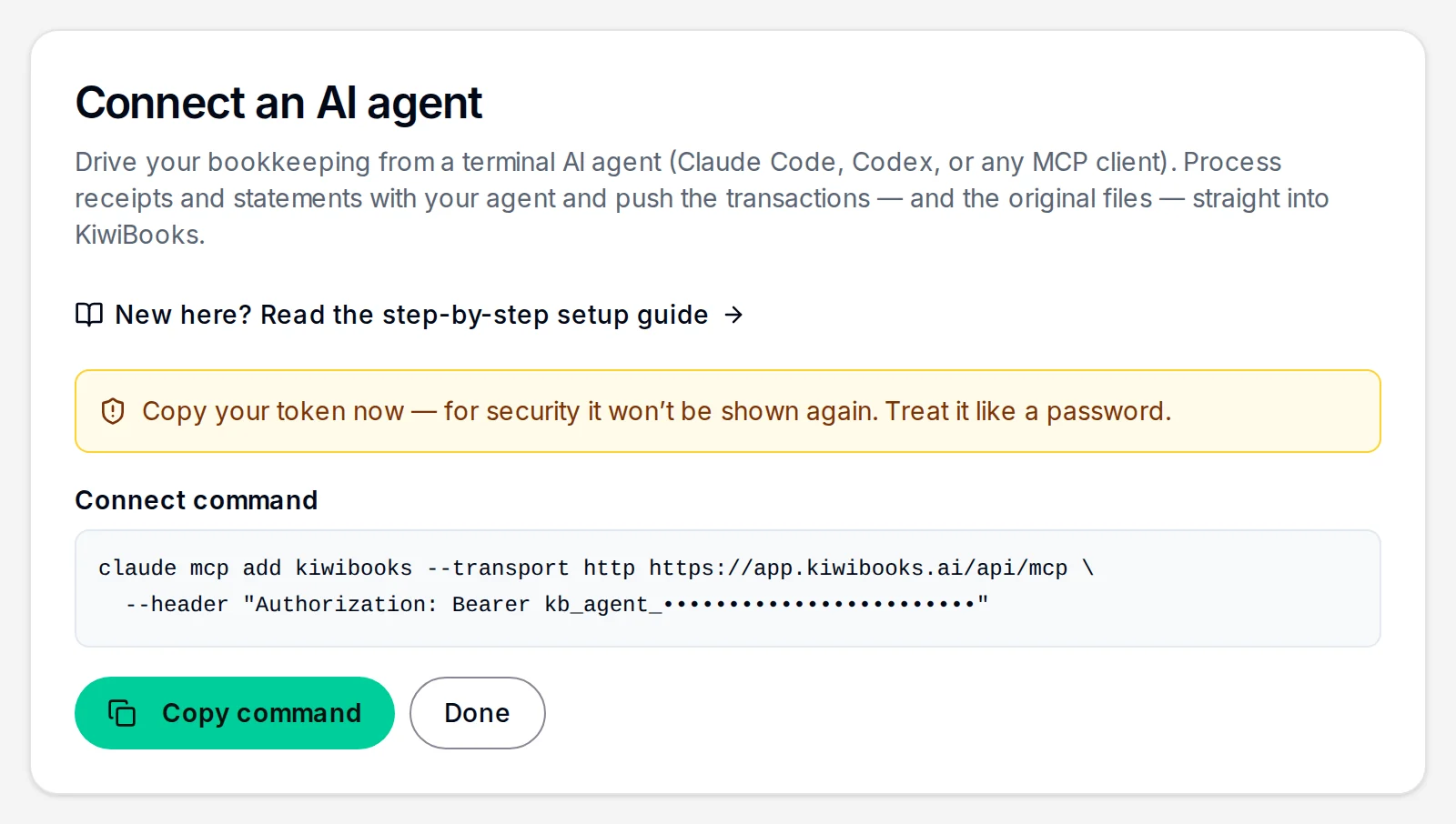
Claude Code, Codex, Grok, and scripts.
These use a connection key instead of the sign-in screen.
Open Settings → AI agent access. Name the key, choose Read only or Read and write, and click Create API key. The key starts with kb_api_ and is shown once. On Free, the key reads your books.
claude mcp add kiwibooks --transport http https://app.kiwibooks.ai/api/mcp \
  --header "Authorization: Bearer kb_api_your_key_here"
Run it in the folder where you use Claude Code, or add --scope user to use KiwiBooks in every folder.
Your own key replaces kb_api_your_key_here.
A firm connection follows each client’s plan. Reading works when that client is on Free. Changes need that client on Pro.
You stay in control.
It only sees the business you approved.
The connection reaches that business and nothing else.
Every change is logged.
Each change made through your assistant is recorded, so there is always a trail.
Disconnect anytime.
Open Settings → AI agent access. Disconnect a connected app, or revoke a key, and later requests are refused.
Common questions.
Do I need a connection key?
Add https://app.kiwibooks.ai/api/mcp in Claude, ChatGPT, or Grok, then sign in with the code KiwiBooks emails you. A connection key is for Claude Code, Codex, the Grok command line, or a script.
What can a free account do?
Connecting is free. On Free, the assistant can read your books. Changes need KiwiBooks Pro. Reading continues on Free.
I lost my connection key. What now?
Keys are shown once, on purpose. Open Settings → AI agent access, revoke the old key, and create a fresh one. Disconnect a connected app from the same page.
I have more than one business. Will it mix them up?
Your assistant works in one business at a time. Every read and every change lands in that business until you switch.
Where does my receipt photo go?
Into your KiwiBooks account, attached to the expense, the same way an upload in the app works.
Where is the privacy policy?
https://kiwibooks.ai/privacy explains connected apps in section 4B. Support is contact@kiwibooks.ai.
Connection details.
The address, the sign-in, and the limits.
Server
https://app.kiwibooks.ai/api/mcp
Remote MCP over Streamable HTTP. A call without a token returns 401 and points at the protected-resource metadata.
Sign-in
OAuth 2.0 authorization code with PKCE (S256). A client can register itself. KiwiBooks emails a 6-digit code. There is no password.
- Authorize:
https://app.kiwibooks.ai/oauth/authorize - Token:
POST https://app.kiwibooks.ai/api/oauth/token - Register:
POST https://app.kiwibooks.ai/api/oauth/register - Revoke:
POST https://app.kiwibooks.ai/api/oauth/revoke
Discovery
- Protected resource:
https://app.kiwibooks.ai/.well-known/oauth-protected-resource/api/mcp - Authorization server:
https://app.kiwibooks.ai/.well-known/oauth-authorization-server
Scopes
books:read and books:write. A refresh token uses offline_access. Both the scopes you approved and the plan of the business owner have to allow the call. Free includes reading. Pro includes changes. A firm connection follows each client’s plan.
Rate limits
Rate limits per API key or connection: 60 requests a minute and 1,000 a day on Free; 120 a minute and 10,000 a day on Pro (CPA firm connections get the Pro limits). Every call counts, reads and status polls included. Over a limit the call fails with HTTP 429 (error type rate_limited) and a Retry-After header giving the seconds to wait (over MCP the error says "Retry after N seconds"). Nothing was done, so wait that long and repeat the same call.
Privacy and support
Privacy policy, section 4B. The full operation list is in the app under Settings → AI agent access, after you sign in.
Connect your assistant.
Create a free account, add the KiwiBooks server, and ask about your books.