
Stop Sharing the Firm Login.
Your staff should not be signing in as you. KiwiBooks firms now run on seats: invite a colleague by their work email, pick Employee or Admin, and every sign-in and every action inside a client's books is logged under their name.
Ask a five-person accounting firm how their staff get into the client's books and you will often hear a version of the same answer: there is one login, and everyone knows the password.
It works right up until it does not. A client asks who changed a categorization in March. A junior leaves in April and the password does not change until June. A partner wants to know how much time went into a messy cleanup and there is nothing to look at. None of that is a people problem. It is a software problem, and it is on us for not solving it sooner.
So we did. KiwiBooks firms now run on seats.
Here is the whole thing, start to finish, in under a minute:
A seat, not a password
A seat is a person. Each one has their own sign-in, their own name against every action, and their own view of the firm's clients. Nobody borrows anybody else's credentials, because nobody needs to.
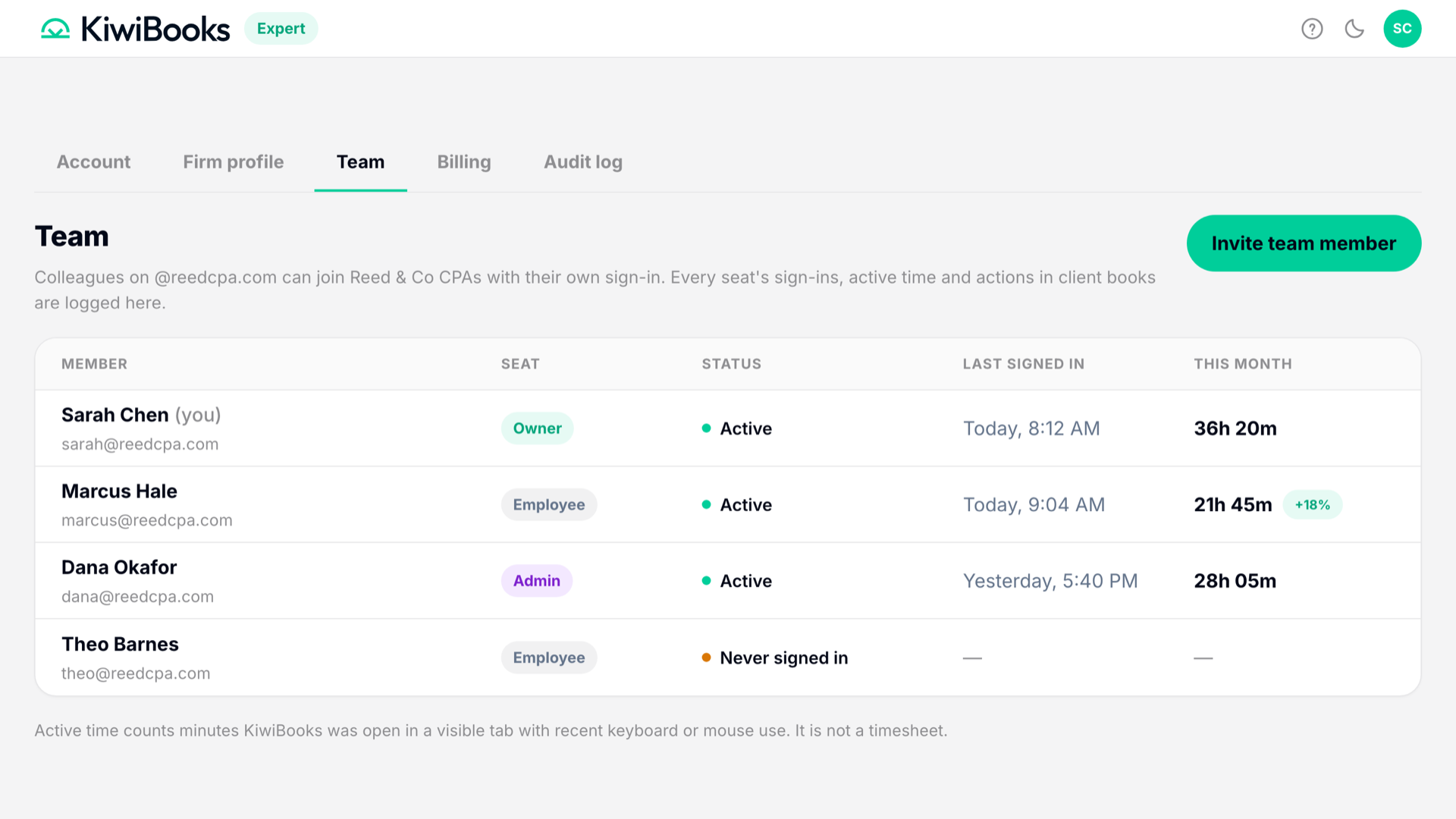
You will find it under Settings, then Team:
Colleagues on @yourfirm.com can join your firm with their own sign-in. Every seat's sign-ins, active time and actions in client books are logged here.
That sentence is the whole feature. The rest is detail.
Adding someone takes about fifteen seconds
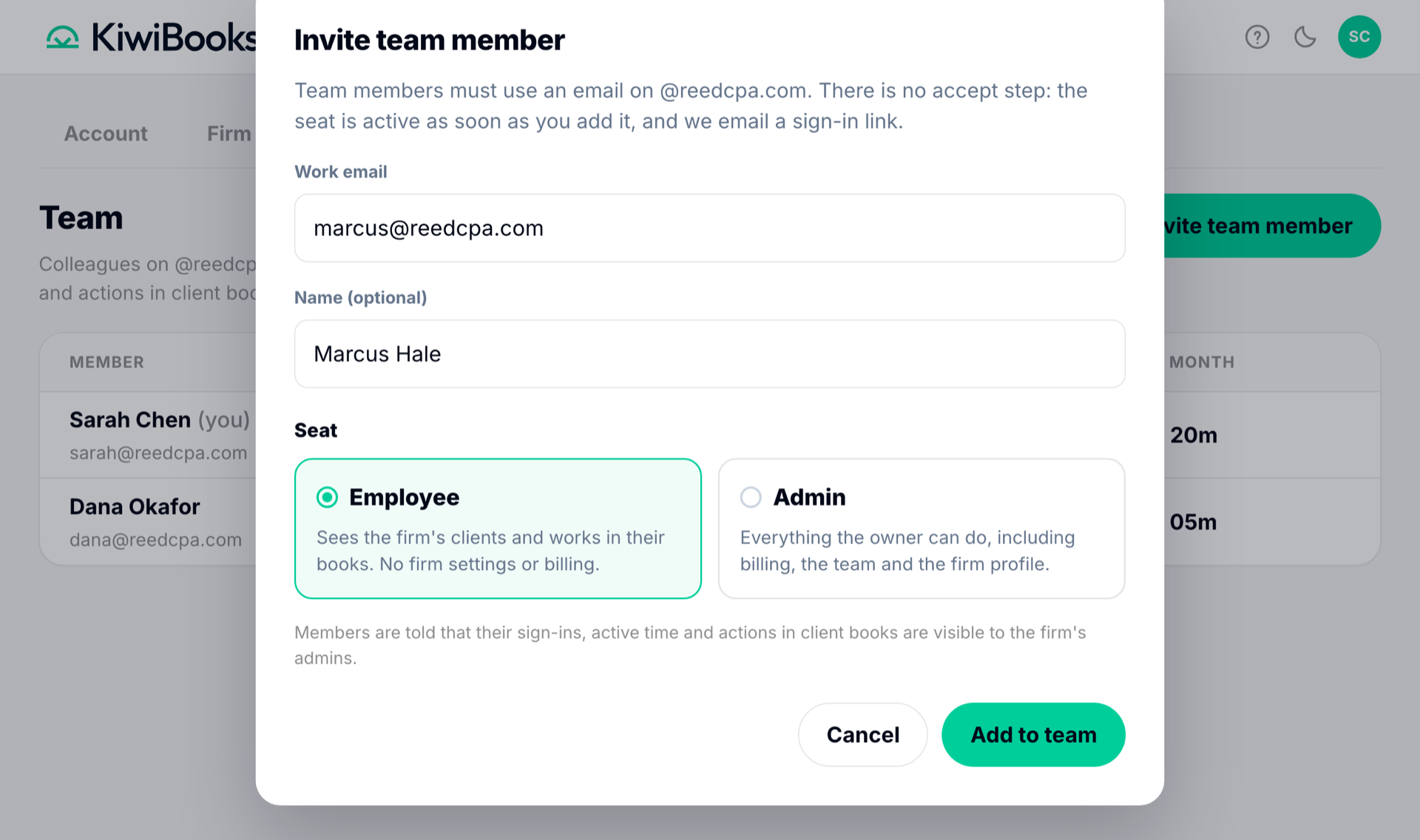
Click Invite team member, either on the Team page or straight from your dashboard header. You get three fields: their work email, their name (optional), and the seat.
The email has to be on your firm's domain. That is the verification: a colleague is someone who shares your firm's email domain, which means you already control who can hold an address there. If your own account email is on Gmail, Outlook or another public provider, the Team page will tell you so and point you at your account settings, because a public domain would let anyone in.
Then the part that surprises people:
There is no accept step: the seat is active as soon as you add it, and we email a sign-in link.
No pending invitation. No "waiting for them to accept" row sitting in your roster for a week. You add the seat, it is live, and they get an email that says they have a seat at your firm and can sign in with that work address. No password to set, because there is no password.
Two seats, drawn on purpose
There are two you can hand out, plus the owner seat you already hold.
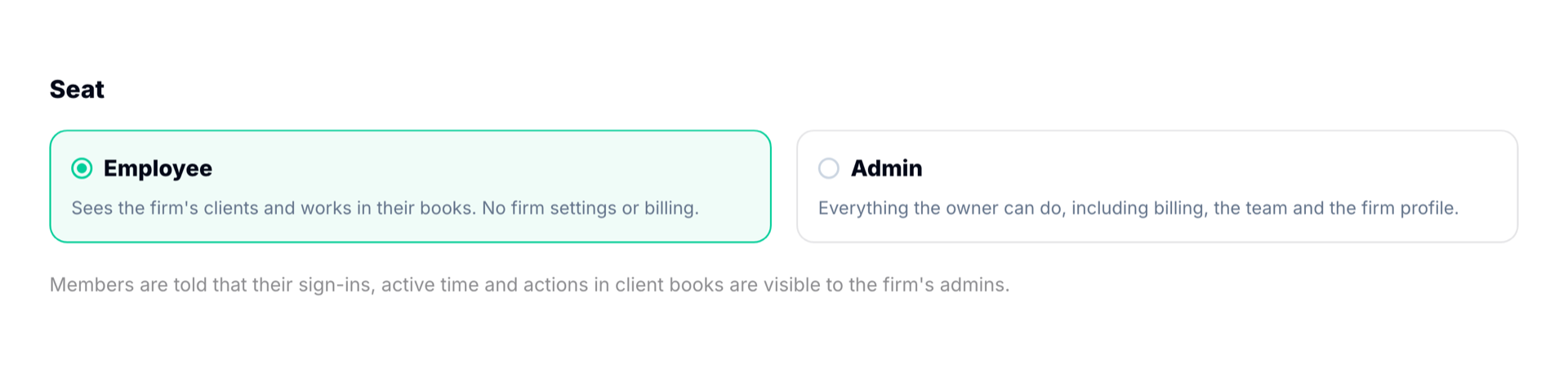
Employee sees the firm's clients and works in their books. That is the whole job: open a client, categorize, reconcile, run reports, do the work. No firm settings, no billing, no team page, no practice.
Admin does everything the owner can do, including billing, the team and the firm profile.
We deliberately did not build a dial with nine settings on it. A firm this size does not need a permissions matrix, it needs a clear answer to "can this person change how we get paid." Employee means no. Admin means yes.
Three rules keep the structure from collapsing. The owner's seat cannot be changed or removed by anyone, including another admin. Nobody can change their own seat, so promoting yourself is not on the table. And employees manage nobody, so the team page is invisible to them.
The part your clients would want to know about
Every seat's activity is visible to the firm's admins, and your staff are told that when they are invited. We put it in the invite email on purpose. Surveillance that people do not know about is a different product, and not one we want to build.
The roster shows each member's seat, whether they are Active or have never signed in, when they last signed in, and their active time this month. Open a member and you get their day-by-day activity, with a CSV export if you want it somewhere else.
One honest caveat, which is also printed on the page:
Active time counts minutes KiwiBooks was open in a visible tab with recent keyboard or mouse use. It is not a timesheet.
Do not bill from it. It is there so you can see that a cleanup took eleven hours rather than the two someone remembered, and so a quiet week is visible before it becomes a quiet month.
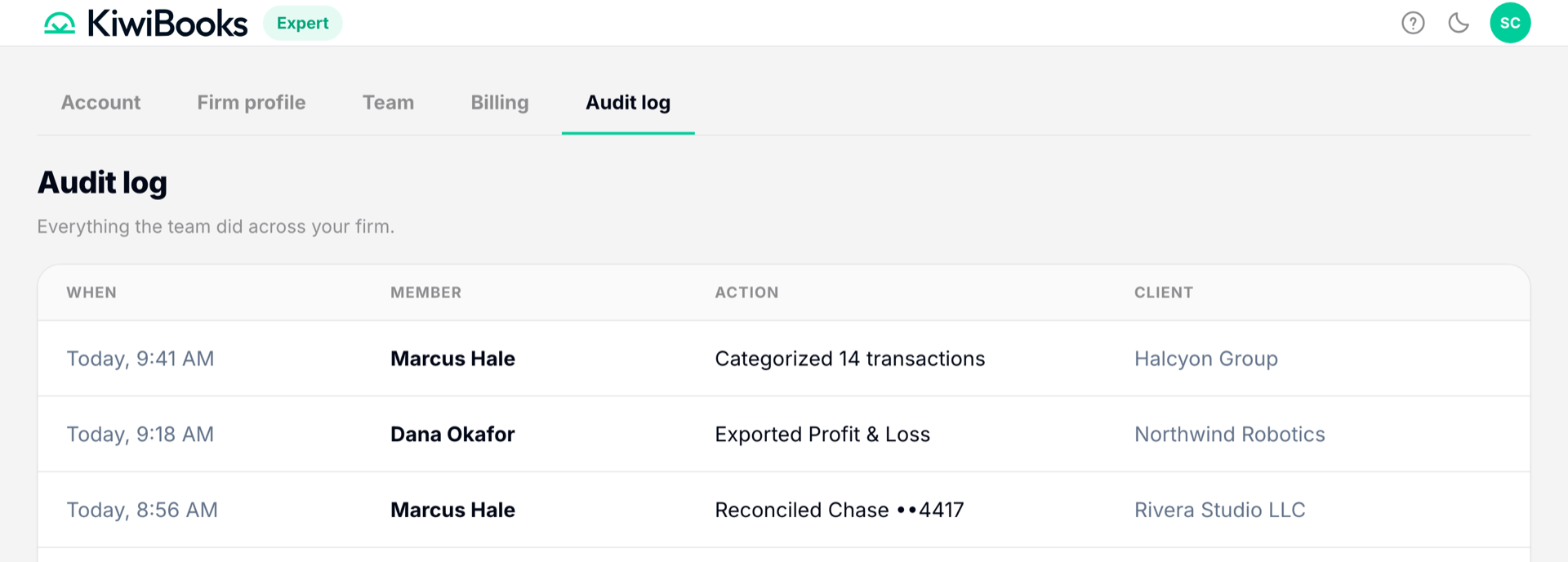
Underneath that sits a firm-wide audit log: every action taken in a client's books, attributed to the person who took it. When a client asks who changed something in March, you answer in about four seconds instead of reconstructing it from memory.
Offboarding that actually offboards
Someone leaves. You remove their seat, and the confirmation tells you exactly what that means:
They lose access to every client of the firm on their next request and are signed out everywhere. Their history stays in the audit log. You can re-invite them later.
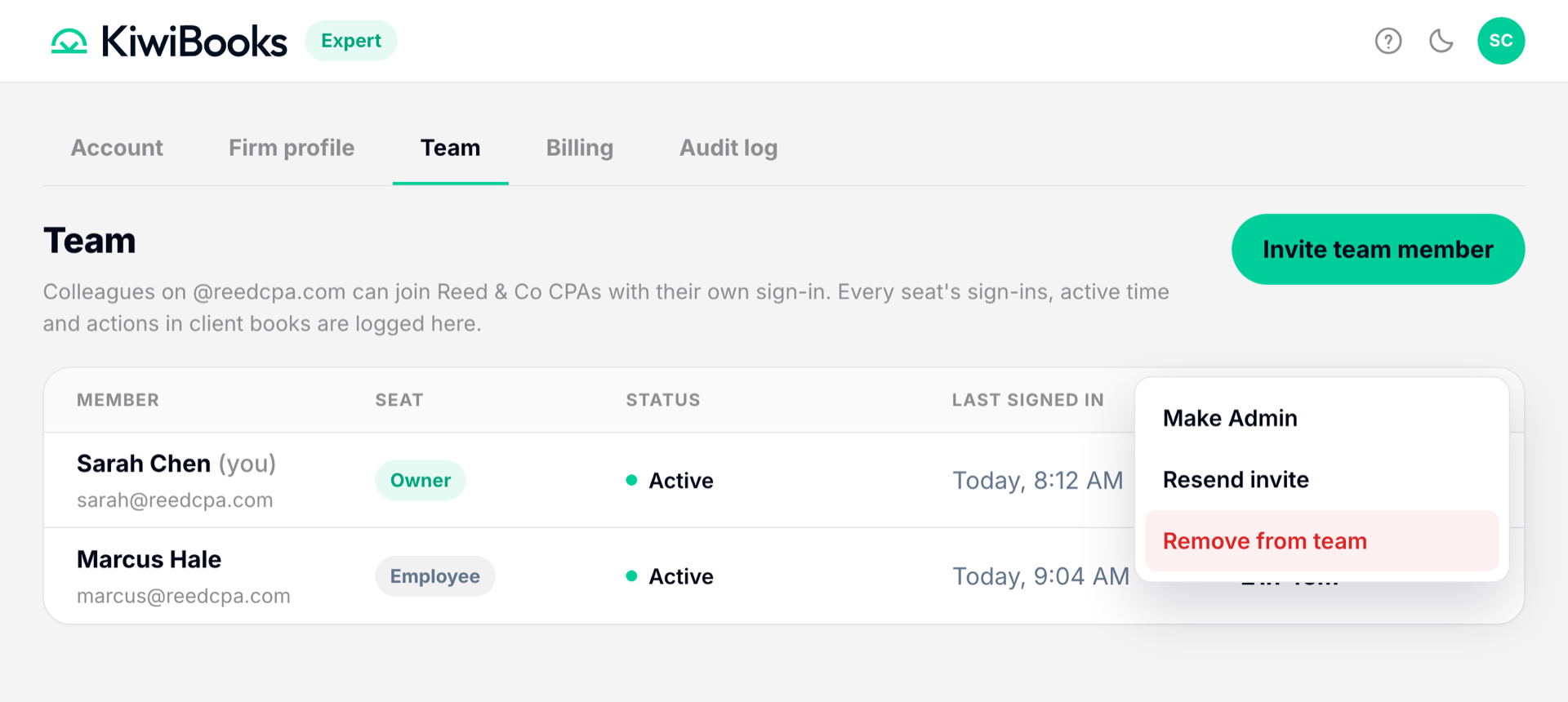
Access ends. The record does not. That is the correct shape: their work stays attributable long after they are gone, which is what you need in a review, and their access stops immediately, which is what you need for the client.
Compare that to changing a shared password, where offboarding means telling four people the new one and hoping the fifth never wrote the old one down.
What this does not do yet
Seats are firm-wide. An employee sees every client of the firm, not a subset you assign them. If you have a client that only two people should touch, this release does not enforce that, and you should know it before you roll it out. Firms cap at fifty active members.
We would rather ship two seats that behave predictably than five that nobody can reason about. Per-client assignment is the obvious next question, and we are listening for how firms actually want it scoped before we build it.
Where to find it
Sign in to your expert account. The quickest path is the Invite team member button in your dashboard header, which opens the same dialog. The full roster, with everyone's seat and activity, lives under Settings, then Team. If neither is there, your account email is on a public domain, and switching it to your firm address will bring both up.
It is free, it is on now, and your password does not need to be a shared secret anymore.
Common questions.
How do I add a staff member to my KiwiBooks firm?
Click Invite team member, either in your expert dashboard header or on the Team page under Settings. Enter their work email on your firm's domain, optionally a name, and choose Employee or Admin. The seat is active as soon as you add it and they get an emailed sign-in link. There is no invitation to accept.
What is the difference between an Employee and an Admin seat?
An Employee sees the firm's clients and works in their books, with no access to firm settings or billing. An Admin can do everything the owner can, including billing, the team page and the firm profile. Neither can remove or demote the owner.
Why does KiwiBooks require a work email address?
Team members are verified by sharing your firm's email domain, so an invite must go to an address on that domain. If your own account email is on a public provider like Gmail, switch it to a work address first and the Team page will open up.
What happens when someone leaves the firm?
Remove them from the team. They lose access to every client of the firm on their next request and are signed out everywhere. Their history stays in the audit log, and you can re-invite them later if they come back.
Can I see what my staff actually did in a client's books?
Yes. The roster shows each seat's last sign-in and active time this month, and a firm-wide audit log records every action taken in client books, attributed to the person who took it.